 PicShrinker
Lossy
The biggest savings. Quality sliders for JPEG, PNG, WebP and HEIC – for photos usually without a visible difference.
PicShrinker makes photos and graphics smaller: JPEG, PNG, WebP, HEIC and TIFF – lossy, lossless or to a fixed target size. Drop in your images, pick a setting, shrink. Everything stays on your Mac.
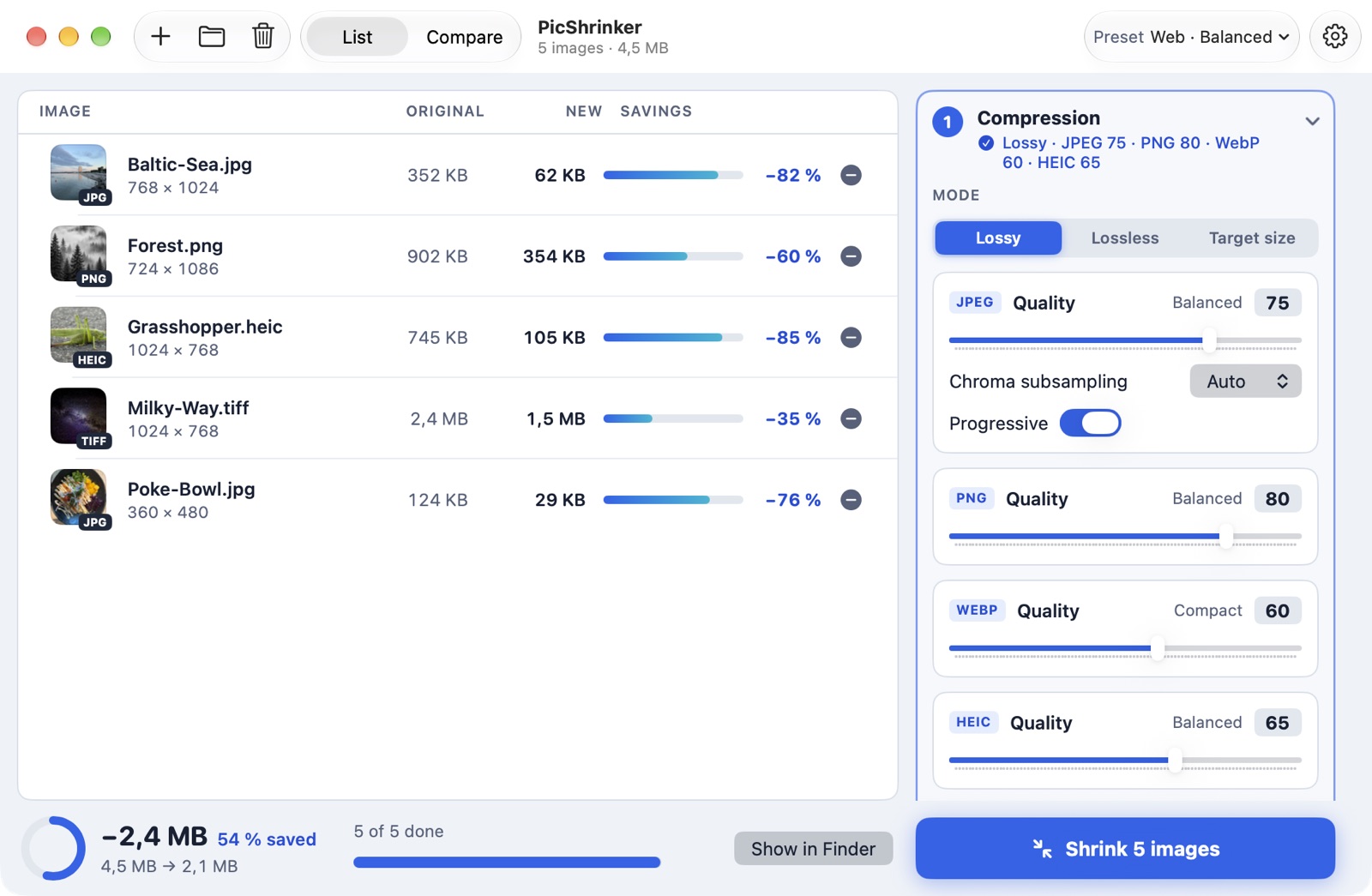
Three ways to a smaller image. Set the quality for each format separately, and PicShrinker tells you what it means – from “Very small” to “High quality”.
The biggest savings. Quality sliders for JPEG, PNG, WebP and HEIC – for photos usually without a visible difference.
Pixel-perfect: the file is only repacked and optimized. Ideal for graphics, logos and screenshots.
Enter e.g. 500 KB and PicShrinker finds the highest quality that fits for each image. Perfect for upload limits.
By long or short edge, width, height, percentage or exact dimensions. Never enlarges if you don't want it to.
PicShrinker encodes JPEGs with Mozilla's mozjpeg, which produces noticeably smaller files than common encoders at the same quality. Chroma subsampling (4:4:4, 4:2:2, 4:2:0) is selectable.
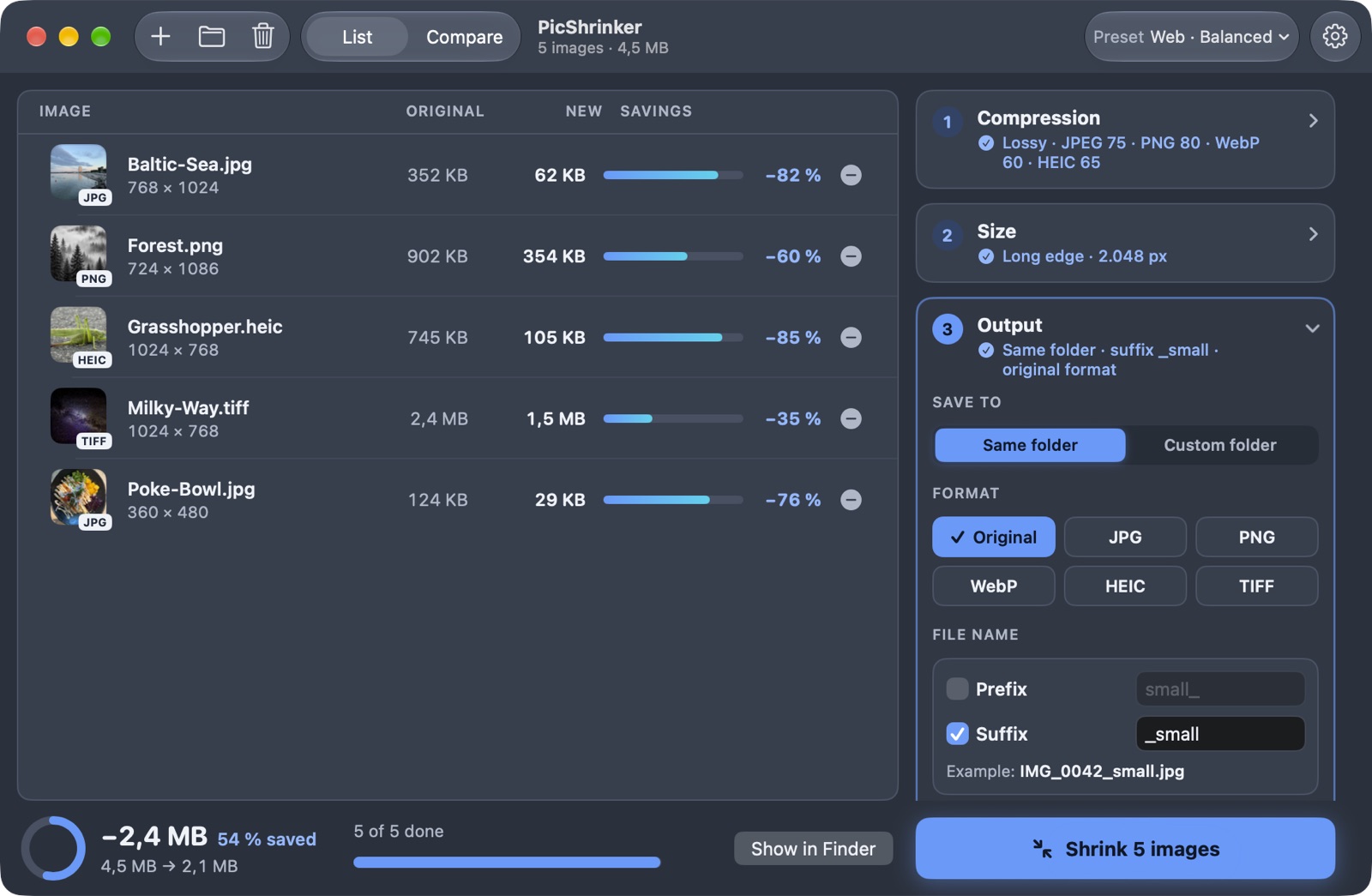
The settings come in three clear steps: compression, size, output. Even when collapsed, each step shows what is currently active.
The comparison lays the original and the result on top of each other. Drag the slider and check every detail before you share your images.
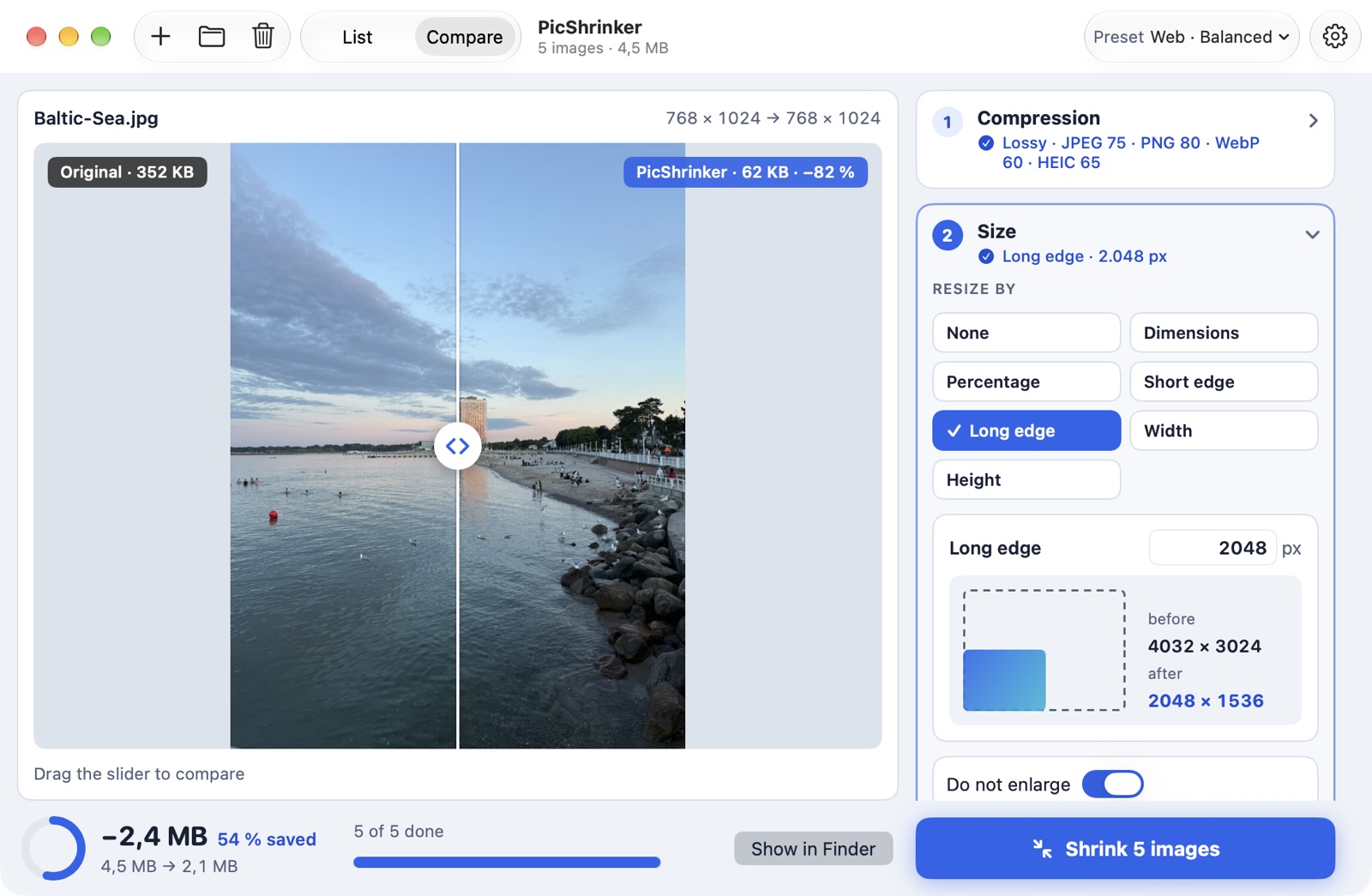
You decide where the images go, what they are called and what happens to metadata and originals.
All settings on one page – no searching, no scrolling.
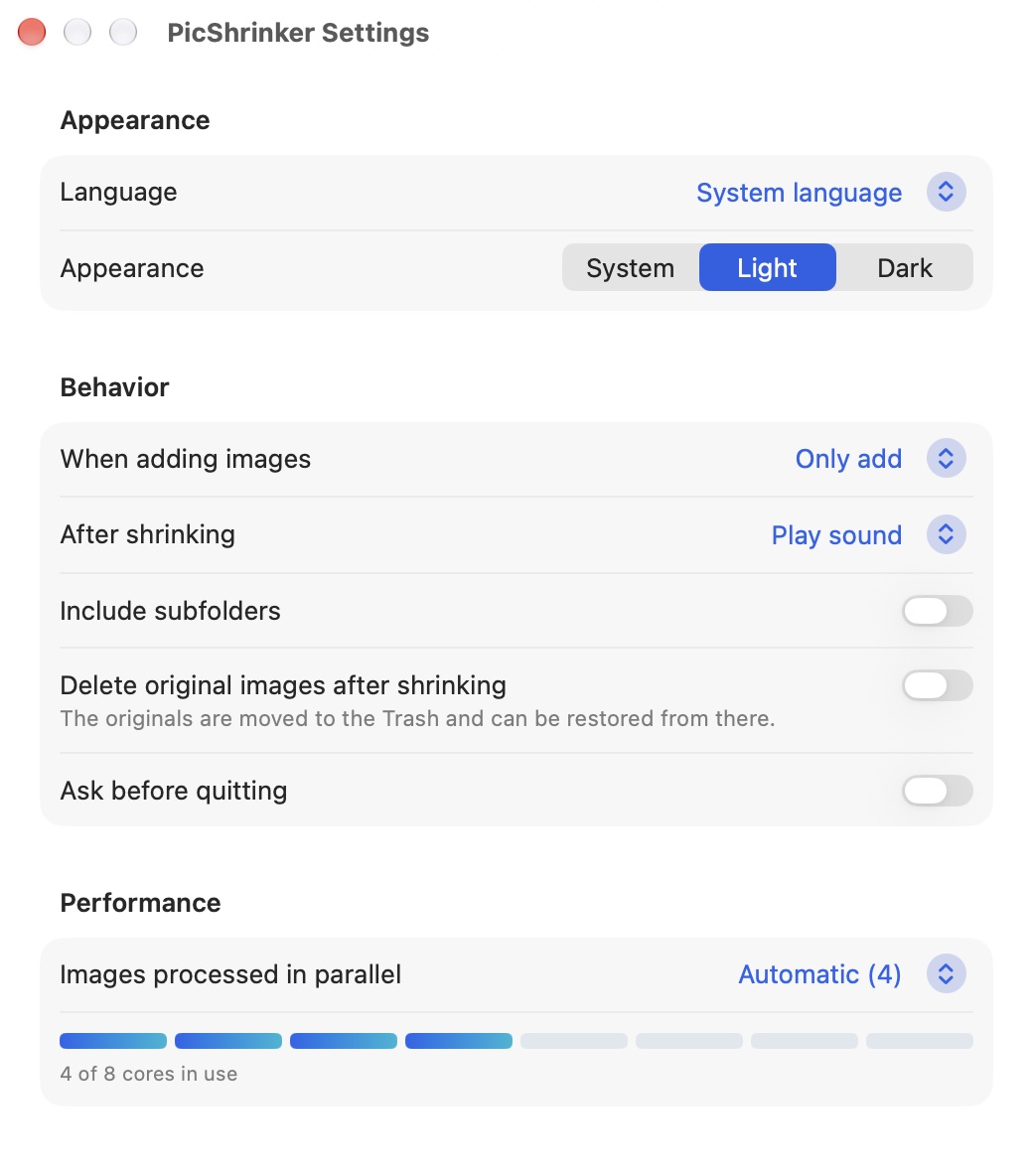
PicShrinker has no permission to access the network. Every image is processed on your device. There is no cloud, no account, no ads and no tracking.
PicShrinker is coming to the Mac App Store soon, for free. No in-app purchases, no subscription, no ads. Updates arrive automatically through the App Store.
Drag images or whole folders into the window, choose compression, size and output on the right and click Shrink. The smaller images are saved next to the originals or in a folder of your choice.
Lossy saves the most space and lets you set the quality per format. Lossless optimizes the file without changing a single pixel. With target size you enter a file size, e.g. 500 KB, and PicShrinker finds the highest quality that fits.
PicShrinker reads and writes JPEG, PNG, WebP, HEIC and TIFF. You can keep the format or convert while shrinking.
Yes, in all formats, as long as “Keep metadata (EXIF)” is on. Turn it off and PicShrinker removes the metadata, for example before you publish photos. The image orientation always stays correct.
No. By default PicShrinker adds a suffix to the file name. Originals are only replaced if you turn off both prefix and suffix and save in the same folder and format – and PicShrinker asks before it does.
PicShrinker runs on every Mac with Apple silicon (M1 or later) and macOS 15 Sequoia or later.
Nothing. PicShrinker is free on the Mac App Store, with no in-app purchases, no subscription and no ads.
No. The app has no network access and processes every image on your Mac. There is no account and no tracking.
Mac App Store apps may only save into folders you have allowed. If you drag single images into the window, PicShrinker asks once for the folder when it first saves there and remembers your choice.
Write to picshrinker@albarus.net.
Have a question, found a bug or want a new feature? Write to picshrinker@albarus.net.
To help us help you quickly, please include your macOS version and PicShrinker version (PicShrinker › About PicShrinker). For bugs, a short description of the image and settings involved helps a lot.
Email support